The multi-scan problem
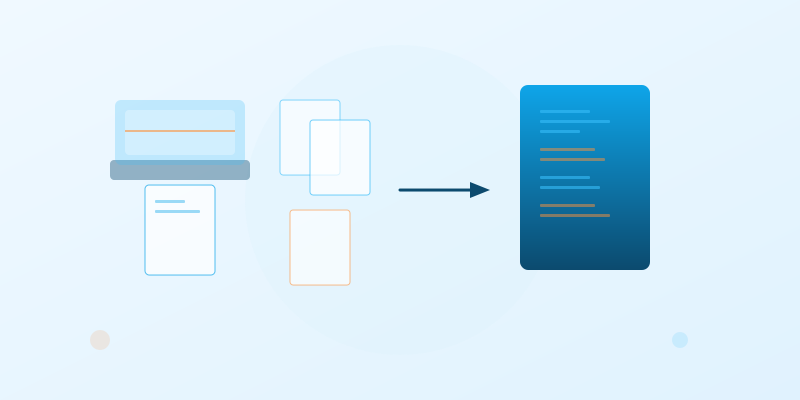
You have a stack of paper documents that need to become one digital file. Maybe it is a complete tax return - W-2 forms, 1099s, receipts, and the return itself. Maybe it is a client onboarding packet - the signed agreement, the NDA, proof of insurance, and identification documents. Maybe it is a legal filing that needs multiple exhibits assembled into a single PDF for submission.
The scanning itself is straightforward. You feed the pages through your document scanner or photograph them with your phone. But what you end up with is rarely a single, ready-to-use file. Instead, you have a collection of separate PDFs - one per scanning session, one per document, or sometimes one per page. And if your scanner has a small feeder capacity, even a single multi-page document might end up split across three or four files.
Now you need to combine those separate scans into one coherent PDF. And ideally, you want the result to be searchable - not just a pile of photographs wrapped in a PDF shell, but an actual document you can search with Command+F, copy text from, and find via Spotlight.
This is a two-step workflow: merge the scans into one file, then OCR the combined file to make it searchable. Or, depending on your situation, OCR each file first and then merge. The order matters, and we will cover why. But first, here are the methods for getting it done.
Method 1: Paradise PDF merge + OCR (recommended)
Paradise PDF has dedicated tools for both merging and OCR, and because both run locally on your Mac, you can go from scattered scans to a single searchable PDF without uploading anything.
Step 1: Merge the scans
- Open Paradise PDF and select the Merge tool from the sidebar.
- Add your scanned PDFs. Drag all of the files in from Finder, or click to browse and select multiple files. You can also add image files directly - JPEG, PNG, TIFF, and HEIC are all supported. Paradise PDF converts images to PDF pages automatically during the merge.
- Arrange the order. Drag files up and down in the list to set the page order. The first file in the list becomes the first pages of the merged output, and so on. If you scanned documents out of order, this is where you fix that.
- Click Merge. Paradise PDF combines all the files into a single PDF. Processing is fast - even merging dozens of scanned files takes just a few seconds.
- Save the merged file. Choose a location and filename. The original scan files are not modified.
Step 2: OCR the merged file
- Switch to the OCR tool in the sidebar.
- Open the merged PDF you just created.
- Select the document language and click OCR.
- Save the searchable result. You now have a single PDF containing all your scanned documents, fully searchable with Command+F and indexed by Spotlight.
The entire process - merging and OCR - typically takes under a minute for a stack of 20-30 scanned pages. Everything runs on your Mac using native code and Apple's Vision framework. No internet connection needed, no files uploaded.
Method 2: macOS Preview
Preview can combine PDFs, though the process is more manual than a dedicated merge tool.
- Open the first scanned PDF in Preview.
- Show the thumbnail sidebar (View > Thumbnails or Option-Command-2).
- Drag additional PDFs into the sidebar. Drop them at the position where you want them to appear in the document. You can drop at the end to append, or between existing thumbnails to insert.
- Repeat for each additional file you want to include.
- Go to File > Export as PDF to save the combined document.
The limitations
Preview's merge-by-drag works for combining a small number of files, but it becomes tedious with more than four or five documents. You have to drag each file individually into the thumbnail sidebar and position it correctly. There is no way to select 15 files and merge them in one operation.
More importantly, Preview has no OCR capability. After merging your scans, you will have a single PDF - but it will still be a collection of flat images. You cannot search the text, select words, or copy content. To make the combined file searchable, you would need to open it in a separate OCR tool like Paradise PDF anyway.
Preview also carries the risk of accidental overwriting. If you use File > Save instead of File > Export as PDF, Preview modifies your first source file to include the merged pages, which can be destructive if you did not intend to alter the original.
Method 3: Scanner software
Most modern scanners come with companion software - ScanSnap Home for Fujitsu scanners, Epson Scan, HP Smart, and so on. Many of these applications can scan multiple pages (or multiple batches) into a single PDF, potentially avoiding the need to merge separate files.
How it helps
If all your documents are being scanned in one sitting, the scanner software can often create a single multi-page PDF directly. You feed in the first batch, the software adds those pages, then you feed in the second batch, and the software appends them to the same file. Some applications even support scanning from the flatbed and the feeder in the same session, combining both into one output.
Where it falls short
Scanner software solves the merging problem only when you are scanning everything at once. If you have PDFs from different sources - some scanned last week, some received by email, some from your phone's camera app - the scanner software cannot help combine them.
OCR support varies widely. Some scanner applications include built-in OCR (ScanSnap Home does, for example), while others produce image-only PDFs. The quality of built-in OCR also varies - dedicated OCR engines like Apple's Vision framework tend to be more accurate and handle a wider range of languages than the OCR bundled with scanner utilities.
If your workflow is purely "scan a stack of paper and create one PDF," scanner software may be sufficient. For anything involving files from multiple sources, mixed digital and scanned documents, or high-quality OCR, a dedicated tool gives you more control.
Method 4: Online tools
Web-based services like Smallpdf, iLovePDF, and Adobe's online tools can merge PDFs through a browser. Some also offer OCR. Upload your files, set the order, click merge, and download the result.
The convenience is real - no software to install, works on any device with a browser. But the trade-offs are significant for scanned documents specifically.
Privacy: You are uploading the full contents of every scanned document to a third-party server. Scanned documents tend to be among the most sensitive files people handle: tax forms, identity documents, legal papers, medical records. Sending all of that to a server you do not control is a risk worth considering carefully.
Upload time: Scanned PDFs are image-heavy and therefore large. Uploading five scanned PDFs totalling 80 MB takes time, even on a fast connection. Then you wait for processing, then download the result. A local tool does the same work in seconds without any network transfer.
File size limits: Free tiers typically cap at 10-25 MB total. A stack of scanned documents can easily exceed this, especially at 300 DPI. Paid tiers remove the cap but add a recurring cost.
OCR quality: Online OCR varies considerably between services. Some produce excellent results; others miss characters, mangle formatting, or struggle with anything other than clean English text. You have limited control over the OCR settings and no way to verify accuracy before committing to the output.
Merge first or OCR first?
When combining scanned documents into a single searchable PDF, you have two possible workflows: merge the scans first and then OCR the combined file, or OCR each scan individually first and then merge the searchable files. Both approaches produce the same end result - a single, searchable PDF - but they have different practical advantages.
| Merge first, then OCR | OCR first, then merge | |
|---|---|---|
| Fewer steps | Yes - one merge, one OCR pass | No - OCR each file separately, then merge |
| Keeps individual searchable copies | No - only the merged file is searchable | Yes - each file becomes searchable on its own |
| Mixed-language documents | One language setting for all pages | Different language per file if needed |
| Error handling | If OCR fails, you redo the entire combined file | If OCR fails on one file, redo only that file |
| Best for | Quick jobs, single-language documents | Archival workflows, multi-language documents |
The practical recommendation
For most people in most situations, merge first, then OCR is the simpler and faster approach. You deal with one merge operation and one OCR pass. The combined file processes as a single unit, and you are done.
Choose OCR first, then merge when you need to keep the individual scanned files as searchable PDFs in addition to the combined file, or when the scanned documents are in different languages and you want to set the OCR language independently for each one.
Best scan settings for this workflow
The quality of your final combined PDF depends heavily on how the source documents were scanned. Getting the settings right at scan time avoids problems later and produces better OCR results.
Resolution: 300 DPI for text, 200 DPI minimum
300 DPI is the standard recommendation for scanned documents that will be OCR'd. At this resolution, characters have enough pixel detail for accurate text recognition, and the scan is sharp enough for comfortable on-screen reading or reprinting. 200 DPI is the acceptable minimum - below that, OCR accuracy drops noticeably and the scan looks soft on high-resolution screens. If the documents contain fine print, small text, or detailed graphics, 400 DPI produces better results at the cost of larger files.
Colour mode: greyscale for text, colour for mixed content
Greyscale scanning is the best choice for documents that are primarily text - contracts, letters, forms, invoices. It produces cleaner scans with better contrast for OCR, and the files are smaller than colour scans. Use colour scanning when the documents contain photographs, colour charts, coloured highlighting, or stamps that you want to preserve accurately.
Avoid scanning in pure black-and-white (1-bit) mode. This forces every pixel to be either black or white, which clips the subtle variations in character shapes and significantly reduces OCR accuracy. The files are smaller, but the accuracy tradeoff is rarely worth it.
File format: PDF, not JPEG
If your scanner offers both PDF and JPEG output, choose PDF. Scanning directly to PDF preserves the document structure and avoids an extra conversion step later. If your scanner only outputs JPEG images, that is fine too - Paradise PDF's merge tool accepts image files directly and converts them to PDF pages during the merge.
Auto-deskew and blank page removal
Enable your scanner's auto-deskew feature if it has one. This straightens pages that went through the feeder at a slight angle, which improves both the visual quality and the OCR accuracy. Blank page removal is useful when scanning double-sided documents that have blank backs - it automatically drops the empty pages so they do not bloat your combined file.
Document feeder vs. flatbed
Use the automatic document feeder (ADF) for stacks of loose, uniformly-sized pages. It is fast and consistent. Use the flatbed for bound documents (books, thick folders), delicate originals, or oddly-sized pages that the feeder cannot handle. When combining scans from both sources, the merge step in Paradise PDF makes it easy to interleave pages from different scanning sessions into the correct order.
Comparison: methods for combining scanned documents
| Feature | Paradise PDF | Preview | Scanner Software | Online Tools |
|---|---|---|---|---|
| Merge multiple PDFs | Yes - batch drag-and-drop | Yes - one at a time into sidebar | Only during scanning | Yes |
| Accept image files | Yes - JPEG, PNG, TIFF, HEIC | Limited | N/A | Some services |
| Reorder pages | Yes - drag to reorder | Yes - drag thumbnails | Limited | Varies |
| Built-in OCR | Yes - Apple Vision | No | Some scanners | Some services |
| Privacy | Fully offline | Fully offline | Fully offline | Files uploaded to servers |
| Works with existing files | Yes - any PDF or image | Yes - any PDF | No - scan time only | Yes |
| Cost | One-time purchase | Free | Free (bundled with scanner) | Free with limits / subscription |
Common scenarios
Assembling a tax return
You have W-2s from your employer, 1099 forms from banks and investment accounts, receipts for deductible expenses, and the return itself. Each was scanned or downloaded separately. Merge them into a single PDF in logical order - return first, then supporting documents - and OCR the result. Now you have one searchable file that your accountant can work with and that you can search years later when you need to find a specific number.
Creating a client file
A new client sends their signed agreement by email, you scan their ID in person, their proof of insurance comes as a fax-to-PDF, and the intake questionnaire was filled out on paper and scanned. Merge all of these into a single client file. OCR makes every page searchable, so when you need to find the policy number from the insurance document six months later, Command+F gets you there instantly.
Archiving project documentation
A completed project has accumulated a mix of digital PDFs and scanned paper documents - contracts, change orders, inspection reports, correspondence. Combining everything into a single searchable PDF creates a complete project record that is easy to store, share, and search. It is dramatically more useful than a folder of 47 separate files, some searchable and some not.
Preparing legal exhibits
Legal filings often require multiple exhibits combined into a single PDF with continuous page numbering. Scan each exhibit separately, merge them in the required order, and OCR the result. The court gets a single, well-organised file, and you have a searchable reference copy for your own use.
Your scanned documents never leave your Mac
Both the merge and OCR steps in Paradise PDF run entirely on your local machine. No page images are uploaded. No recognised text is transmitted. The merge uses native macOS APIs, and the OCR uses Apple's Vision framework with on-device machine learning. Your scanned documents stay on your Mac through every step of the process.
This matters most when you are combining sensitive documents - and scanned documents are almost always sensitive. Tax forms, identity documents, contracts, medical records, financial statements. These are the documents where uploading to a third-party server is not just inconvenient but genuinely risky. With Paradise PDF, the risk does not exist. There is no server. There is no upload. Your documents stay in your control.
Related reading
Combine your scanned documents into one searchable PDF
Download Paradise PDF and go from scattered scans to a single, searchable file in under a minute. No account, no subscription, no uploads.
Download Paradise PDF
macOS 13 Ventura or later · Apple Silicon and Intel